3D to Litematic: Convert 3MF to GLB for Web and AR
Learn how 3d to litematic framing fits a 3MF to GLB workflow: convert a print file for web and AR, check scale, and keep the original 3MF for printing.
Readers looking for 3d to litematic will still find useful framing here: this guide covers the related 3MF to GLB conversion for web and AR, including scale checks and what to keep from the original 3MF.
A 3MF is built for slicing, while GLB is built for viewing, sharing, and real-time 3D. This guide walks through the conversion, checks the millimeter-to-meter scale change, and shows how to move the result into websites, Blender, game engines, and AR.
The short version
- Use the 3MF to GLB converter when a print project needs to become a web-ready or AR-ready model.
- Check the source dimensions in millimeters before converting. The converter changes them to meters by dividing by 1000.
- The result is rotated from 3MF’s Z-up build space to glTF’s Y-up orientation, so it opens upright in common viewers and 3D applications.
- Keep the original 3MF. Print settings, supports, plate layouts, and slicer-specific project data do not belong in a GLB.
What changes when 3MF becomes GLB?
A 3MF file is a print package. It can hold meshes, multiple objects, build-plate positions, colors, materials, and slicer project data. Its dimensions are in millimeters, and its coordinate system is Z-up, which matches a typical print bed.
A GLB is a binary glTF file intended for displaying 3D content. It packages meshes, positions, PBR materials, textures, and animation into a single file. GLB uses meters and Y-up orientation. Browsers, AR viewers, Blender, Unity, Unreal, and Godot are built to work with this kind of asset.
That difference explains why conversion is useful. A 3MF may open correctly in Bambu Studio or PrusaSlicer but not in a web page or game engine. A GLB can be embedded in a product listing, sent to a client for review, opened in Blender, or placed into a game scene.
The conversion is not a replacement for the print master. It keeps the model geometry and presentation data needed for viewing, while leaving behind layer height, supports, slicing profiles, and plate settings. I keep both files: the 3MF for printing and the GLB for presentation or interactive use.
Step 1: Inspect the 3MF before converting
Before changing formats, I inspect the project with the 3MF Viewer. It opens the package in a browser without requiring a slicer installation and shows the objects at the positions stored in the file.
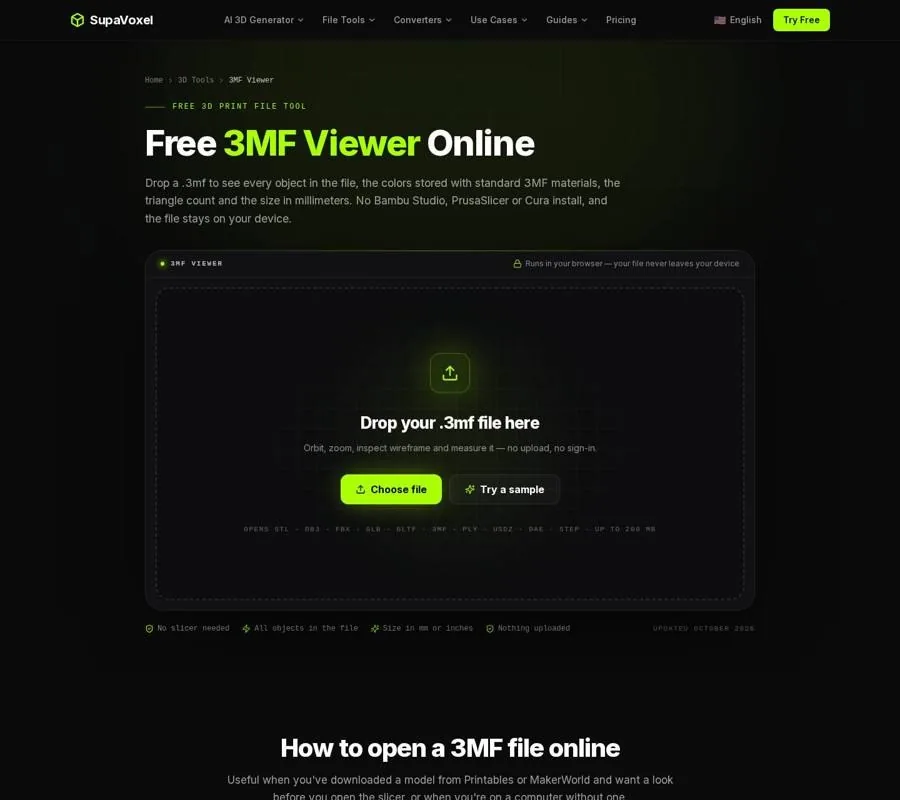
The 3MF Viewer displays the objects, dimensions, mesh information, and stored standard colors before conversion.
Drop the .3mf file into the viewer, or use Choose file. The viewer can show:
- Every object and build item in the file
- The positions of objects on the plate
- Meshes, vertices, materials, and triangle count
- The bounding box in millimeters, centimeters, or inches
- Wireframe and clay views
- Standard 3MF colors and packaged textures
- A PNG screenshot of the current view
This check is especially helpful for a project downloaded from Printables or MakerWorld. A 3MF may contain a complete plate with a figure, a base, and spare parts rather than a single model. If the project contains several plates, note that before conversion. The converter reads the objects in the project, so a multi-plate file can produce a GLB containing more than the part intended for a web preview.
The viewer supports 3MF files up to 200 MB. It also helps separate geometry problems from slicer-display problems: if an object is present and correctly sized in the viewer, it is available for conversion even if some slicer-specific appearance data is not visible.
Step 2: Convert the file and verify scale
The 3MF to GLB workflow is short:
- Drop the
.3mffile into the converter. - Let the converter read the project or plain model export.
- Check the Output size readout.
- Adjust Scale only if the intended display size is different.
- Press Convert to GLB and download the result.
The converter runs in the browser, needs no sign-up, and does not upload the print file. Project files and plain model exports are supported up to 200 MB. Objects stored as sub-models, including the way Bambu Studio can save them, are read along with their positions.
The most important check is the unit conversion. 3MF dimensions are in millimeters, while glTF dimensions are in meters. The converter divides the measurements by 1000 automatically.
For example:
- A 60 mm figurine becomes a GLB with an output size of 0.06 m.
- A 120 mm print becomes a GLB with an output size of 0.12 m.
That may look like a reduction if the original model was measured in millimeters, but it is the correct representation for glTF and AR. A web viewer or AR system interprets the GLB in meters, so a 60 mm object remains 60 mm when placed at true scale.
Do not apply another conversion factor after downloading. If a 60 mm object is changed again by 0.001 in an importing application, it will become much too small. Use the converter’s Scale control only when the goal is a larger display model rather than the original print size.
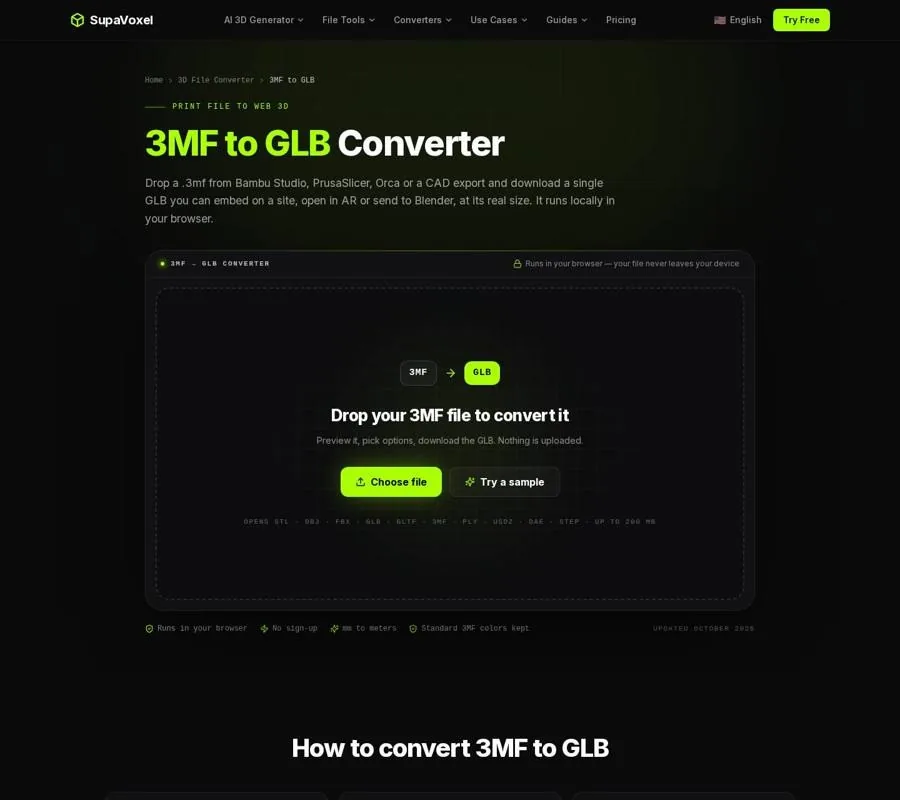
The 3MF to GLB page shows the source file, output size, scale control, and conversion action.
Step 3: Confirm the orientation and contents
The converter changes the model from 3MF’s Z-up build space to glTF’s Y-up coordinate system. This matters because a model can have correct dimensions but appear lying on its side after an incorrect axis conversion.
A correctly converted GLB should stand upright in a glTF model viewer, Blender, Unity, Unreal, or Godot. If the print was positioned on a build plate, that orientation is carried into the converted geometry rather than being treated as a loose collection of triangles.
The conversion keeps:
- Geometry
- Separate objects
- Object positions
- Standard 3MF colors
- Standard 3MF textures
It does not keep:
- Print settings
- Supports
- Plate layout as slicer data
- Slicing profiles
- Slicer-painted colors or filament assignments stored only in slicer extensions
This is why a GLB should be treated as a viewing asset, not as a backup of the print project. The original 3MF remains necessary if the model needs to be sliced again with its saved setup.
Step 4: Use the GLB on the web, in Blender, or in an engine
For a website, GLB is usually the practical handoff format. Browser libraries such as three.js, Babylon.js, and model-viewer can display it in an interactive viewer. A shop listing can show a rotating product preview, a client can inspect a model without installing a slicer, and a game developer can load the same asset into a scene.
For Blender, use the built-in glTF importer through File > Import > glTF 2.0. The GLB arrives with its geometry, object structure, materials, and textures that survived the conversion. Since the output is already in meters, check the object dimensions in Blender rather than applying a blanket scale correction.
Unity, Unreal, and Godot can also work with GLB or glTF assets. This makes the format useful when a printable prop needs to become an interactive object. The print-specific information is irrelevant in those environments, while the mesh, position, and material data are useful.
For Android AR, GLB is a suitable starting point for Scene Viewer and browser-based AR workflows. For iPhone and iPad, the usual next step is the GLB to USDZ converter, which creates a USDZ file for Apple’s AR Quick Look.
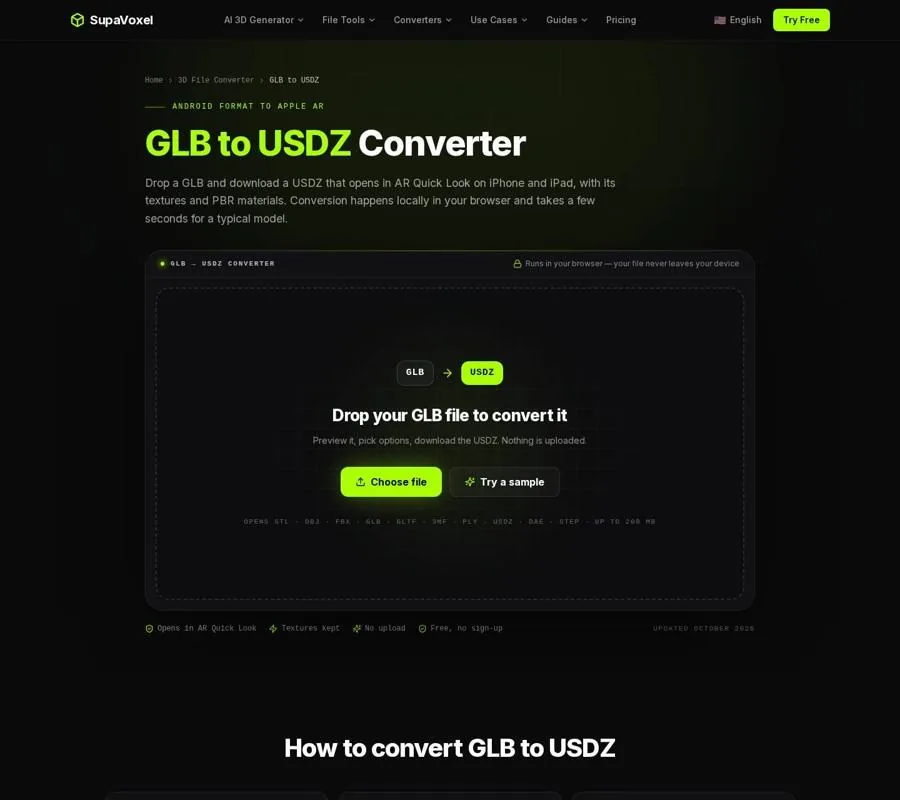
The GLB to USDZ page checks the source model’s size and materials before creating an iPhone-ready USDZ file.
AR makes the scale check especially important. Both GLB and USDZ use meters, and AR viewers place the model at its real-world size. If the output size is wrong before conversion, the object will also be wrong when placed in a room. Check the dimensions first, then convert to USDZ with textures enabled when the appearance matters.
When GLB is not the right handoff
GLB is a good choice for viewing, web embedding, AR, and real-time scenes. It is not always the best format for mesh editing.
If the next task is sculpting or remodeling in an application that expects OBJ, use the 3MF to OBJ converter. It keeps each 3MF object as a separate OBJ group and writes standard base colors to an MTL file. It also converts millimeters to meters because OBJ has no unit field and Blender commonly assumes meters.
OBJ is useful for moving printable geometry into Blender, ZBrush, Maya, or another application that supports the format. GLB is generally better when the destination needs a single packaged asset with materials and textures. In either case, retain the original 3MF as the source for printing.
A practical pre-share checklist
Before sending the GLB to a client or placing it on a site, I check these points:
- The intended objects are present, especially when the source contains several plates.
- The output size matches the real print dimensions.
- The model stands upright instead of lying on its side.
- The downloaded file opens in the intended viewer or application.
- Standard materials and textures appear as expected.
- The original 3MF is stored alongside the GLB.
- A separate USDZ is prepared when iPhone or iPad AR is required.
If the GLB is too large for a web page, the geometry can be reduced with a mesh-optimization workflow before publishing. If the model looks gray or lacks a slicer-painted region, inspect how that appearance was stored in the 3MF rather than assuming the conversion damaged the mesh.
FAQ
Does converting 3MF to GLB change the real size?
No, provided the file is converted once and imported without another scale correction. The converter changes millimeters to meters by dividing by 1000, so a 120 mm model becomes 0.12 m while representing the same physical size.
Will a multi-plate 3MF become a single GLB?
The objects read from the project are placed into the GLB together. If the source contains several plates, objects from those plates can appear in the output. Export a single plate as its own 3MF when only one plate should become the web or AR asset.
Why are print settings missing from the GLB?
GLB is a presentation and real-time model format, not a slicer project format. Supports, layer settings, plate configuration, and slicing profiles are not carried over. Keep the 3MF for printing and use the GLB for viewing, sharing, editing, or interactive scenes.
Want to try it yourself?
Try Supavoxel →